


WELCOME
Overview
CDR Assistant Tool is an assistant tool developed based on the UCM platform with trend network UCM630x series. The tool provides users with convenient and fast CDR backup data analysis, query, and filtering operations, to prevent users from inconvenient use of CDR data packets, which causes difficulty in data search, CSV file format affects reading, and easy data loss. Users only need to download the CDR View Assistant tool to import and query CDR data, which greatly improves the operation’s work efficiency and maintains its easy management.
Feature Highlights
- The software can be used without logging in/registering.
- Support parsing CDR data.
- Support decrypting recording files.
- Support CDR data retention on the tool side and can still be viewed next time if it is opened.
- Support simultaneous import of multiple CDR backup files of the same UCM device. The number of files is not limited.
- The software interface text supports Chinese and English.
Features | Description |
Encryption and Decryption algorithm | AES-256 |
Audio Encoding | WAV |
Multi-language support | Support English and Chinese Simplified. |
Login Method | No sign-in required |
Download/Upgrade | Grandstream official website |
INSTALLATION OF THE TOOL
After downloading the installation program, the user can double-click to open the program and understand the copyright statement. Click on the “Accept” button to proceed to the next step.

Click “Browse” to select the tool installation path, and when you are done, click “Extract“. Once the operation is complete, the CDR Assistant tool is installed under that chosen directory.

After opening the folder, you can see the cdrtool file, open the cdrtools.exe application under that folder. Wait a few seconds to enter the CDR View Assistant interface.

FILE IMPORT/EXPORT
File import
Click on “Import File” under “File” in the upper left corner of the interface to select the CDR file (.cenc) that needs to be parsed and backed up by the GDMS server.
- Must upload .cenc format file.
- In the case of file encryption, the user needs to enter the file password for verification. After the password is correct, the file will be parsed and uploaded to the CDR list.
- The file password is the initial password of the UCM device, which can be viewed on the LCD screen of the device.
- The tool supports simultaneous import of multiple CDR backup files of the same UCM device.
File export
There are two ways to export CDR backup package files:
- Click “Export to CSV” under “File” at the top left corner of the interface to export all data.
- Click “Export Search Results” in the lower-left corner of the interface and export the required data according to the filter results.
The exported file formats are all CSV.
FILE FILTERING
Users can select specified conditions in the filters mentioned above the CDR list to obtain the target CDR data they are looking for.

Start time | Specify the start time to filter the CDR report. Click on the arrow on the right and the calendar will show for users to select the exact date and time. |
End time | Specify the end time to filter the CDR report. Click on the arrow on the right and the calendar will show for users to select the exact date and time. |
Caller Number | Enter the caller number to filter the CDR report. CDR with the matching caller number will be filtered out. User could specify a particular caller number or enter a pattern. “.” matches zero or more characters, only appears in the end. “X” matches any digit from 0 to 9, case-insensitive, repeatable, only appears in the end. For example:
|
Caller Name | Enter the caller name to filter the CDR report. CDR with the matching caller name will be filtered out. |
Callee Number | Enter the Callee number to filter the CDR report. CDR with the matching |
Account Code | Select the account Code to filter with. If pin group CDR is enabled, the |
Source Trunk Name | Select source trunk(s) and the CDR of calls going through inbound the |
Destination Trunk Name | Select destination trunk(s) and the CDR of calls going outbound through the trunk(s) will be filtered out. |
Action Type | Filter calls using the Action Type, the following actions are available:
|
Extension Group | Specify the Extension Group name to filter with. |
Call Type | Groups the following:
|
Status | Filter with the call status, the available statuses are the following:
|
FILE DECRYPTION
UCM Record Decrypt
Decrypting Recording Files
- Open the UCM63xx CDR Tool (cdrtools.exe). Once opened, click on File → UCM Record Decrypt to bring up the file upload window.

- Click on the Add File button.

Navigate to and select the folder containing the recording files as illustrated in the example images below.


- Once uploaded, you will see the name of the uploaded folder above the Start Decrypt button. Next, click on the Upload Key File button. This key file is the encryption key downloaded from the UCM management portal and must be the one that was in use when the CDR and recordings were downloaded.

- Once uploaded, the key file’s name will appear above the Upload Key File button. Next, select the path in which to store the decrypted file.
- Source path: The same folder that the encrypted recordings are in.
- Customize path: A user-specified path. The current path will be displayed right next to this option.

- After clicking the Start Decrypt button, the tool will prompt for the Key Password, which is the password that was set during the key file export from the UCM. Once entered, click OK to submit the password and begin the decryption process.

Decrypting Voicemail
In order to decrypt voicemail, users need to follow the same steps in the Decrypting Recording Files section and instead upload a file labeled “voicemail“. This file must be uploaded directly from the UCM backup or SFTP Data Sync.
The screenshot below shows the path of the voicemail file. Once the file is uploaded, please continue with the rest of the steps mentioned before.

GDMS Record Decrypt
- Open cdrtools.exe, then click the File button located in the upper-right corner. From the dropdown menu, select GDMS Record Decrypt to access the GDMS cloud file decryption interface.
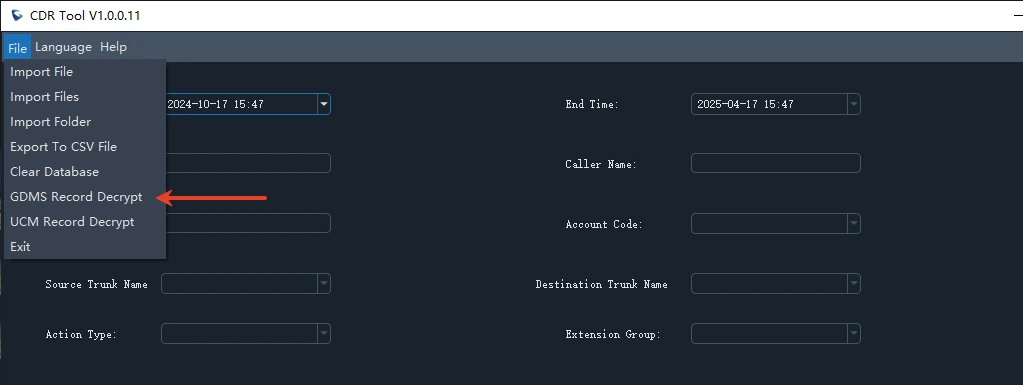
- Click Add File to upload the encrypted file you downloaded from GDMS cloud storage. To upload an entire folder, use the Add Folder button.
- Next, select the path in which to store the decrypted file.
- Source path: The same folder that the encrypted recordings are in.
- Customize path: A user-specified path. The current path will be displayed right next to this option.
- Once you click Start Decrypt. You will be prompted to enter the Key Password. This password is the GDMS cloud storage CDR/Recording File key, which can be found on the UCM’s RemoteConnect Settings.
- After entering the correct key, the decryption process will begin. Once completed, the decrypted files will be saved in the folder you specified in the Path field.
SET-UP
File
By Clicking on the “File” button in the upper left corner of the tool, users get to perform some important operations related to the CDR tool including Import file/files/folder, Export to CSV File, Clear Database, GDMS Record Decrypt, UCM Record Decrypt and exit.

Features | Description |
Import File | Import CDR backup package file. |
Import Files | Import CDR backup package files. |
Import Folder | Import CDR backup package folder. |
Export to CSV File | Export all data from the CDR list to generate a CSV file. |
Clear Database | This will empty all current data. Without clearing the database, CDR list data under the same UCM device is continuously superimposed, affecting usage. |
GDMS Record Decrypt | Add an encrypted GDMS recording file/folder and the decrypted file will be generated when the operation is complete. |
UCM Record Decrypt | Add an encrypted UCM recording folder and the decrypted file will be generated when the operation is complete. |
Exit | Exit the CDR assistant tool. |
Language
The CDR Assistant tool currently supports only Chinese and English.

Help
- About CDR Tools: This computer program is protected by copyright law and international treaties. Unauthorized reproduction or distribution of this program, or any portion of it, may result in severe civil and criminal penalties and will be prosecuted to the maximum extent possible under the law.
- FAQ: The link jumps to the user manual interface of the software to browse the contents of this user manual.

CHANGE LOG
This section documents significant changes from previous versions of the CDR Tool Guide. Only major new features or major document updates are listed here. Minor updates for corrections or editing are not documented here.
Version 1.0.0.11
- Added support to upload voicemail file directly from UCM export.
Version 1.0.0.10
- Added UCM Record Decrypt.
- Added GDMS Record Decrypt.
- This is the initial version.
Copyright
©2024 Grandstream Networks, Inc. https://www.grandstream.com
All rights reserved. Information in this document is subject to change without notice. Reproduction or transmittal of the entire or any part, in any form or by any means, electronic or print, for any purpose without the express written permission of Grandstream Networks, Inc. is not permitted.
The latest electronic version of this guide is available for download here: https://www.grandstream.com/support
Grandstream is a registered trademark and the Grandstream logo is a trademark of Grandstream Networks, Inc. in the United States, Europe, and other countries.