Overview
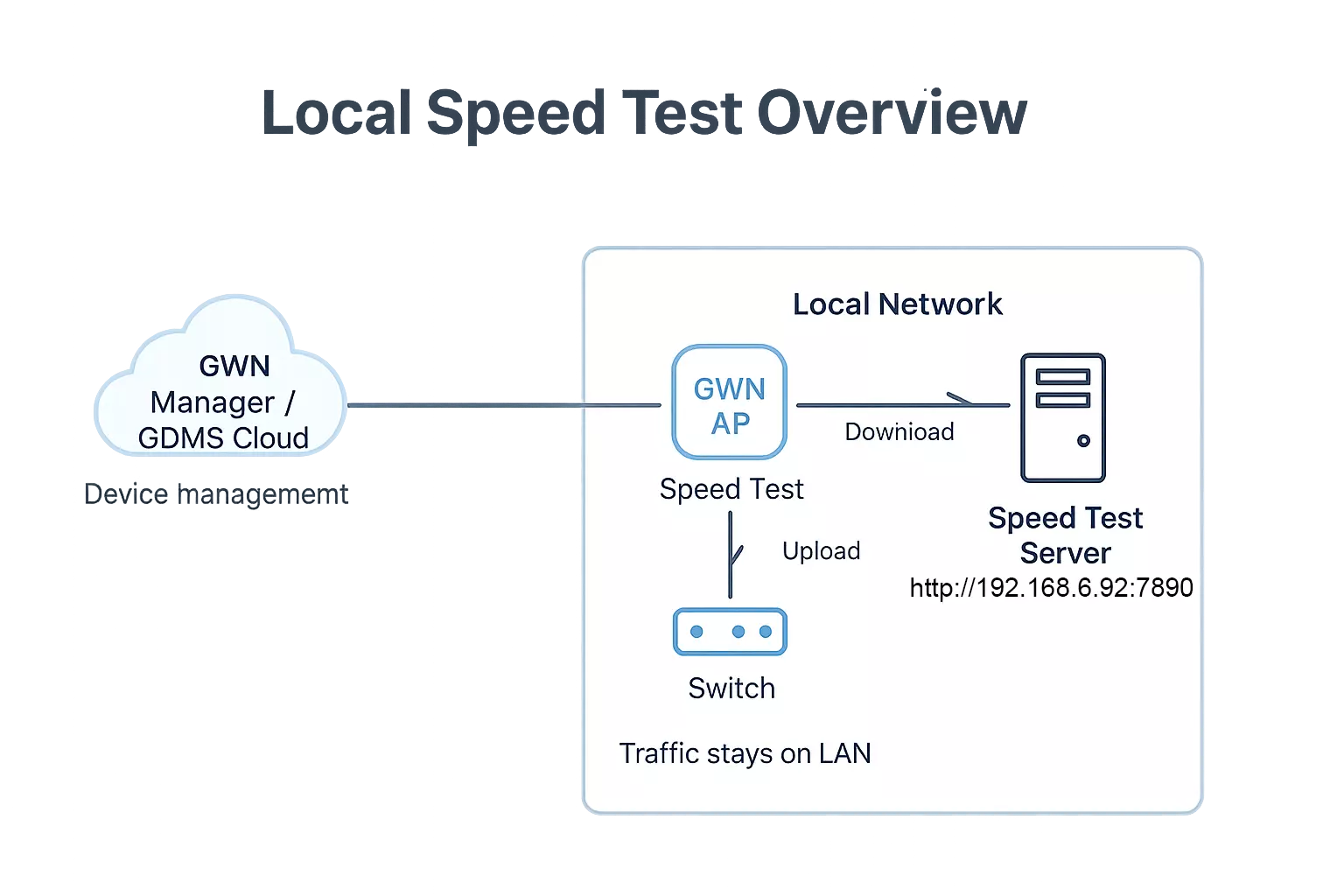
This guide shows how to deploy a local GWN Speed Test Server on Linux and register it in GDMS Networking or GWN Manager. Testing against a local target keeps traffic on your network, avoids internet bottlenecks, and provides consistent, reproducible results for troubleshooting and capacity checks. We’ll walk through the GUI steps and include copy-paste commands for Ubuntu and CentOS.
Note: The platforms also offer public test servers; this document focuses on the local option for controlled testing.
Prerequisites
To follow this guide, have the following ready:
- Platform access: A GDMS Networking or GWN Manager account with rights to add a Speed Test Server (Organization → Global).
- One managed device: At least one device such as a GWN access point adopted in GWN Manager or added to GDMS Networking to run the test.
- Linux host for the server: Ubuntu or CentOS machine (physical or VM).
- Static IP recommended: Assign a fixed address to the host so the server URL remains stable.
- Network mode: If using a VM, use Bridged (or equivalent) so devices can reach the server IP directly.
- Admin privileges:
sudoaccess on the Linux host. - Download: Speed Test package from the Grandstream Tools page: https://www.grandstream.com/support/tools
- Example URL used in this guide:
http://192.168.6.92:7890(replace with your server’s IP).
Speed Test Server Installation
Docker Installation
Install Docker on the Linux host so the speed test package can deploy its service.
- Ubuntu (22.04+)
sudo apt install docker.io
Verify Docker is available
docker -v
- CentOS
For CentOS installation of Docker, follow these commands.
- Update packages
yum update -y- Install Docker
yum install docker -y- Start Docker
systemctl start docker- Check status (should show “active”)
systemctl status dockerSpeed Test package Installation
- Download the package (latest from Grandstream Tools, save to
~/Downloads)
# https://www.grandstream.com/support/tools (download the tar.gz file)- Extract the archive
cd ~/Downloads
tar -xzf speedtest_setup_1.0.1.2.tar.gz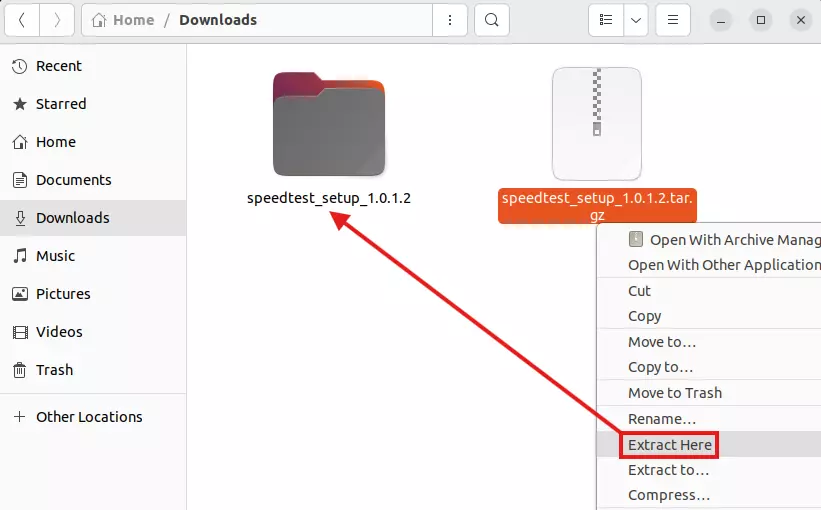
- Open the setup folder
cd speedtest_setup_1.0.1.2/speedtest_setup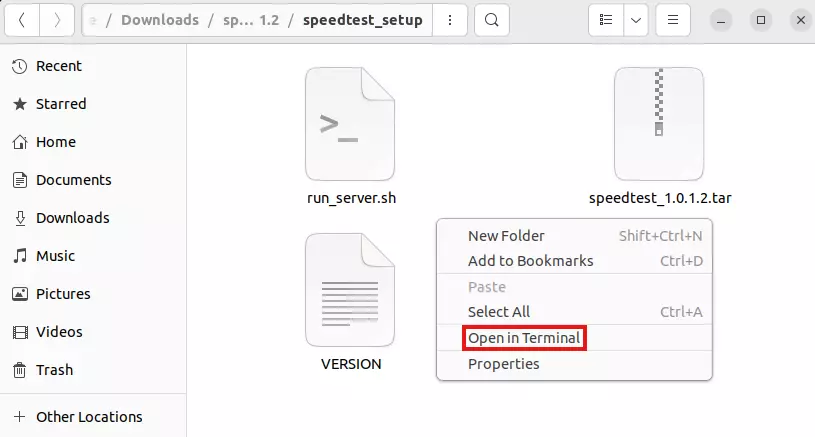
- Run the setup script (deploy the server)
sh run_server.sh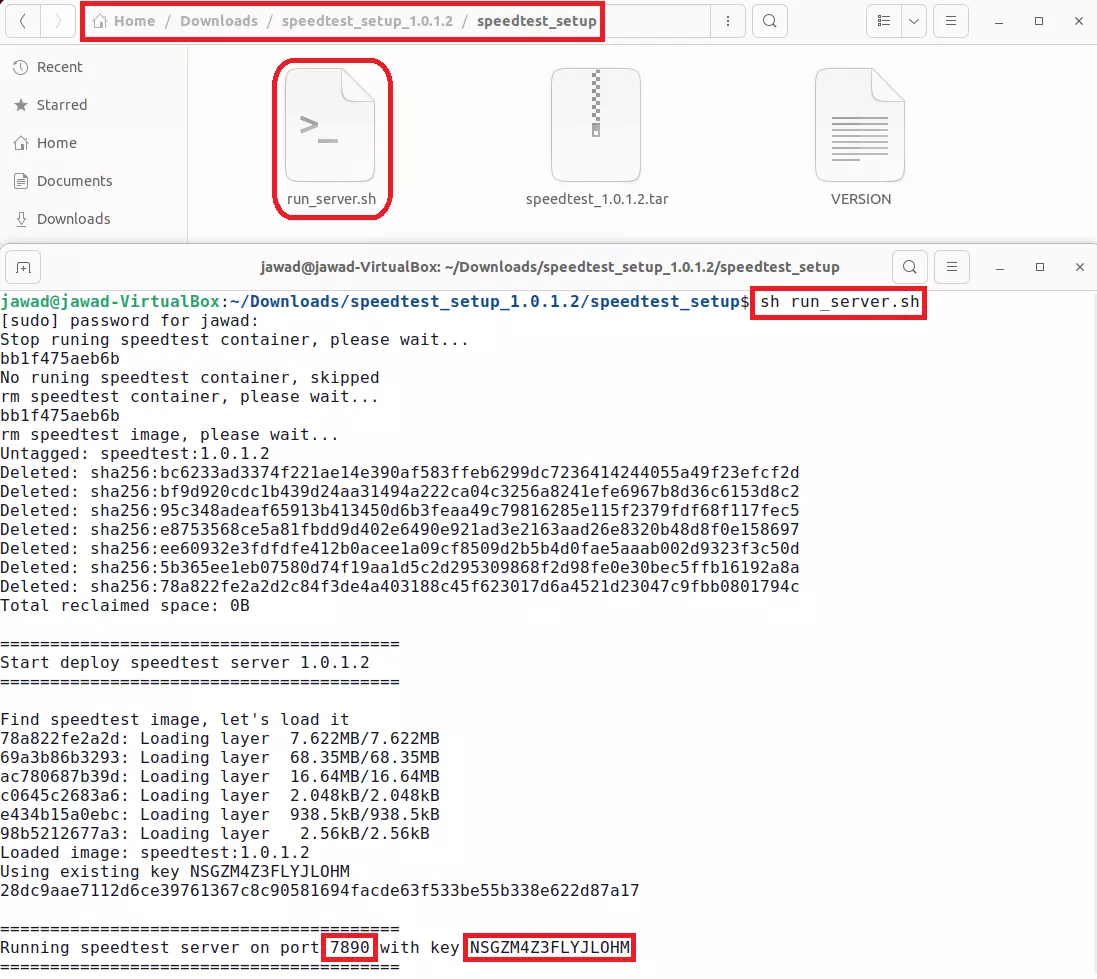
- Server URL (default port 7890)
# Replace with your host IP
http://192.168.6.92:7890- Secret key file (for adding the server in the platform)
sudo cat /data/conf/secret_key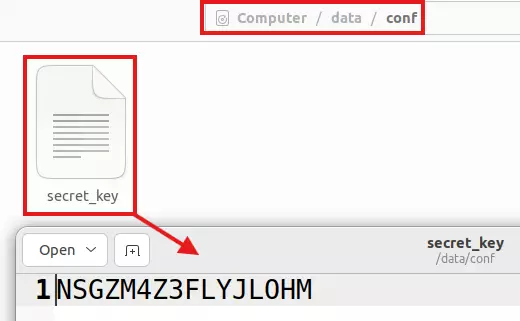
- Verify the service status
sudo docker ps
# Expect: 0.0.0.0:7890->7890/tcp and container name "speedtest"
- Stop the server (optional)
sudo docker stop speedtest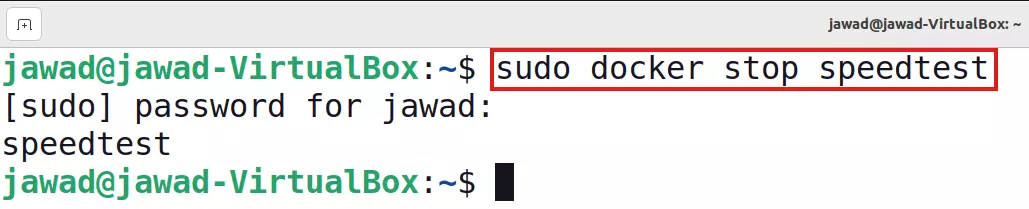
- Start the server (optional)
sudo docker start speedtest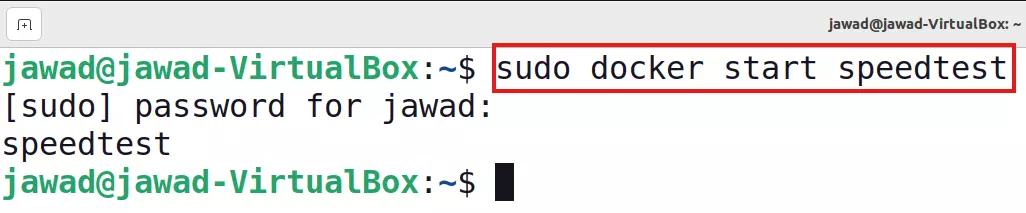
Management Platform Configuration
Follow these steps in GDMS Networking or GWN Manager to register your local server and run a test from a device.
1) Open the Speed Test Server page
- Go to Organization → Global → Speed Test Server.
- Click Add.

2) Add your local server
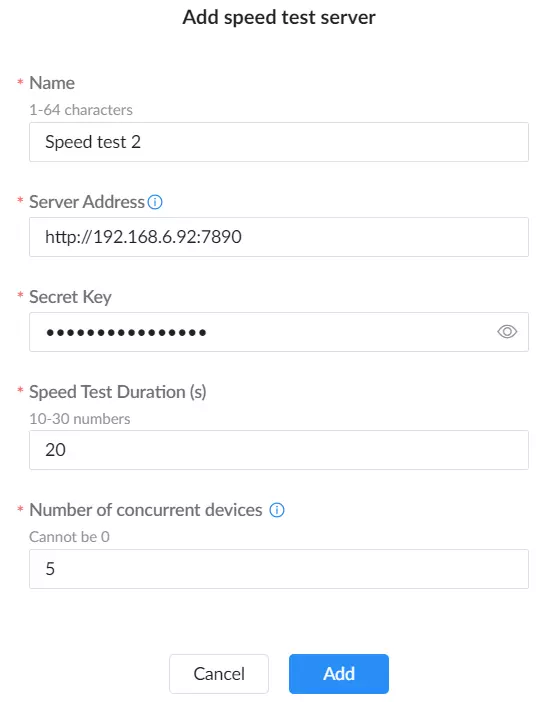
Fill the dialog:
- Name:
Speed test <#>(any label). - Server Address:
http://<server_ip>:7890
Example:http://192.168.6.92:7890 - Secret Key:
<secret_key>printed byrun_server.sh(or read withsudo cat /data/conf/secret_key). - Speed Test Duration (s):
10–30(e.g.,20). - Number of concurrent devices:
1–10(e.g.,5).
Click Add to save.
Tip: Use a static IP on the server so this entry stays valid. You can add multiple local servers and pick among them during testing.
3) Prepare a device for testing
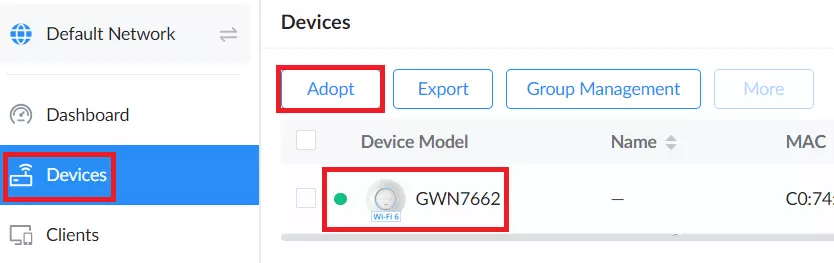
- Ensure at least one GWN AP/router is adopted to GWN Manager or Added to GDMS Networking and online under Devices.
- If you need onboarding steps, see Getting Started with GDMS Platform.
4) Start a speed test from the device page
- Open Devices → <device>.
- Click Speed Test.

5) Observe the test phases
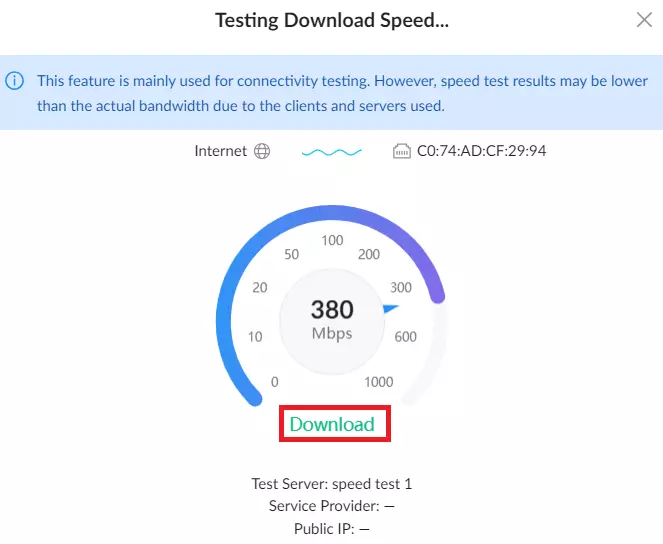
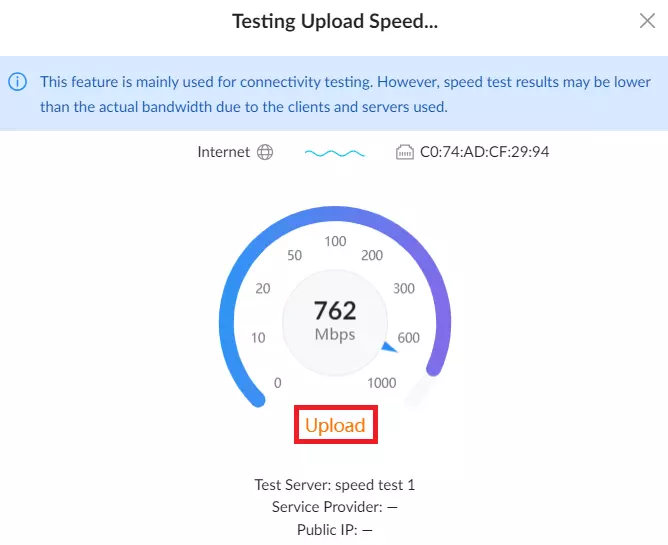
- The dialog runs Download first, then Upload against your local server.
6) Review the results and retest with different server
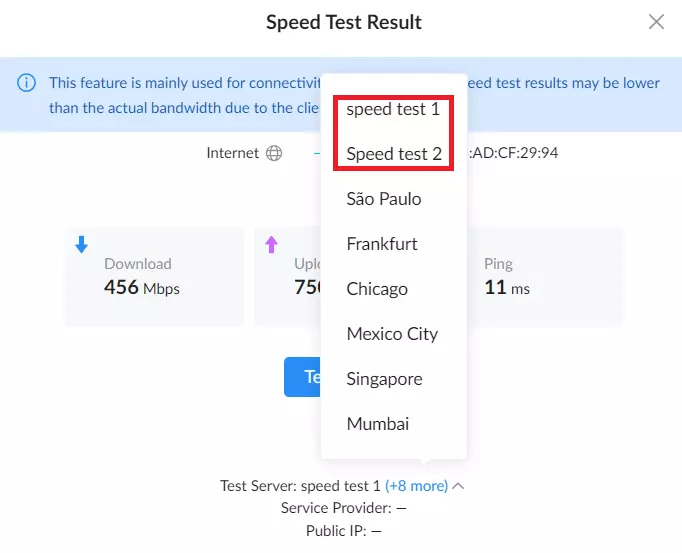
- Final panel shows Download / Upload / Ping.
- Click Test Again to repeat. (optional)
- In the results dialog, open Test Server list and select another entry (e.g.,
speed test 1,speed test 2) to compare runs.