Introduction
The Grandstream WP856 is a device compatible with Zoom Phone’s Push-to-Talk (PTT) feature, utilizing a customized button. Zoom Phone push-to-talk (PTT) is the classic walkie-talkie solution used by front-line workers in retail, healthcare, manufacturing, and many more industries. This feature allows users to quickly send or receive voice messages to a group of users in real time—Zoom Phone push-to-talk, built into the Zoom app and available on smart mobile devices.
This document serves as an admin and user guide on how to configure WP856 for the Zoom PTT feature with the customized button.
Requirements
Before configuring the Zoom push-to-talk functionality on the WP856 smartphone, the following conditions need to be met:
- Zoom Phone license: Members must be a paid Zoom Phone user/have a Zoom Phone package.
- Push to Talk is enabled for the account, since the Push to Talk (PTT) is built into the Zoom mobile app but remains hidden until the user is assigned PTT functionality.
- Account owner or admin must create the channel and assign members in the Zoom web portal.
- Zoom mobile app with Global minimum version or higher is installed on WP856.
The remainder of the guide will consider the above conditions fulfilled and will configure the WP856 device based on that.
Admin Configuration
The admin configuration is performed in the Zoom web portal. The configuration will include:
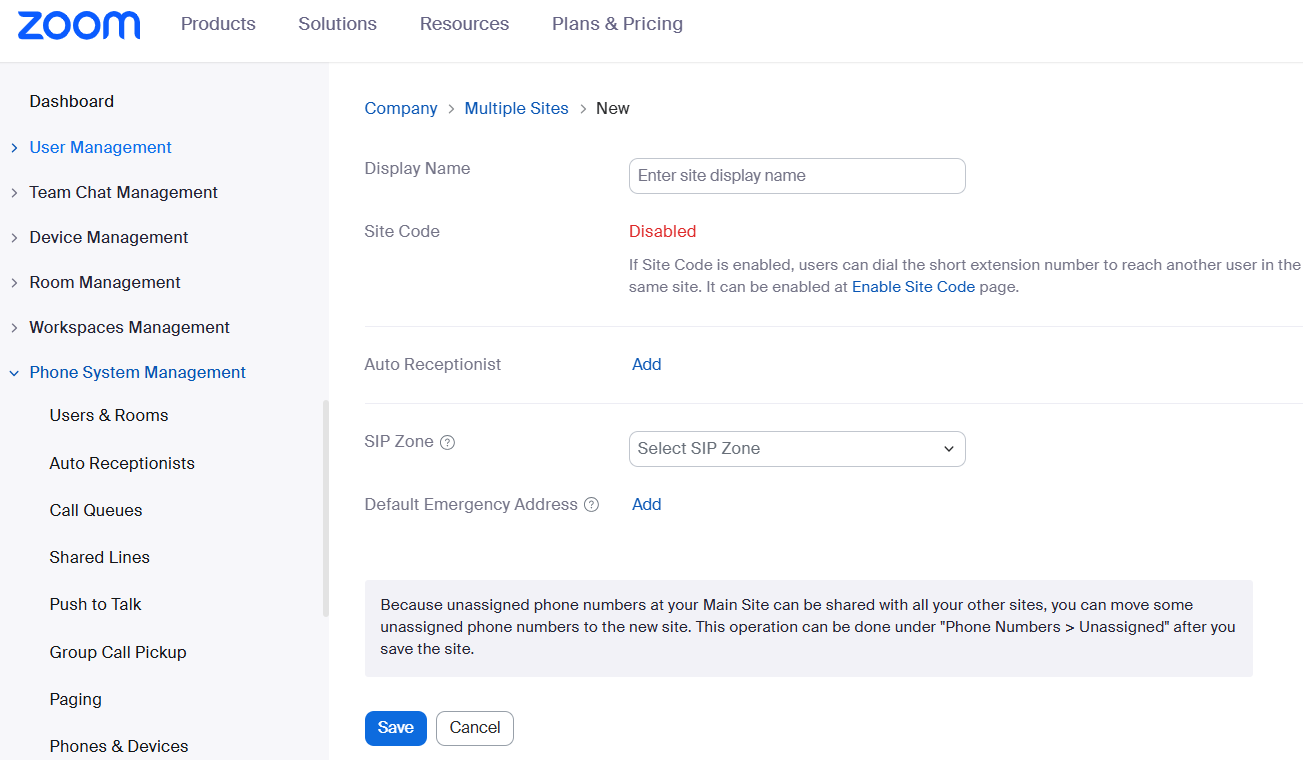
- Adding a site
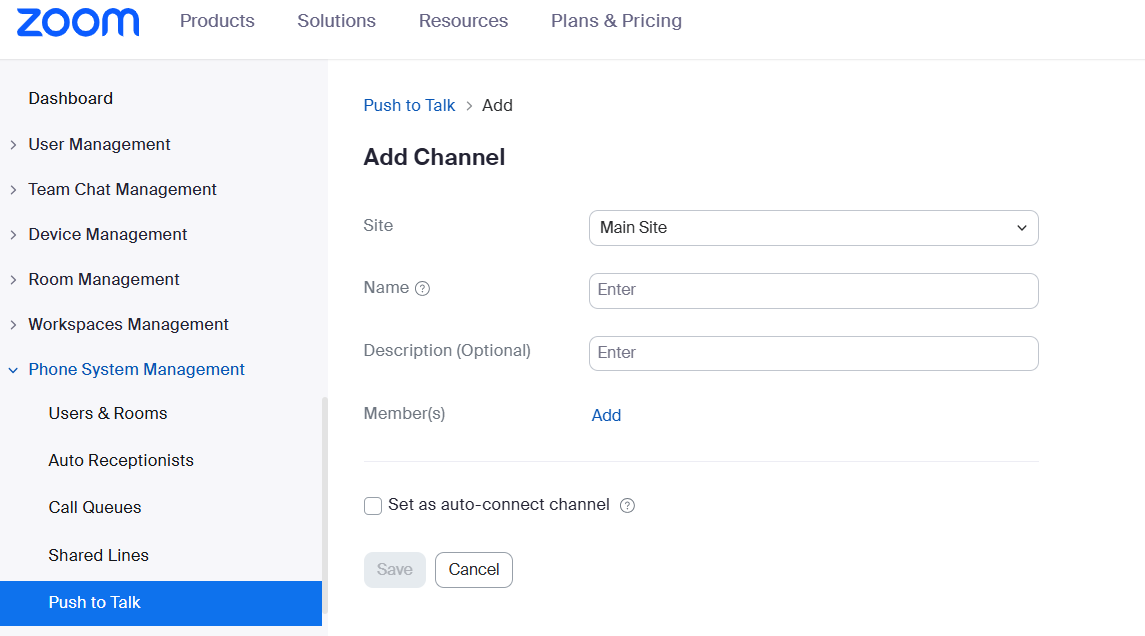
- Adding a channel
Add a site
A Site in Zoom Phone is a logical grouping of users, numbers, and phone system settings within your organization.
Creating sites allows you to:
- Separate departments, locations, or teams.
- Assign different extensions, rules, and routing settings.
- Organize PTT users based on their operational area.
For PTT deployments, sites help ensure that each group of users can be managed independently, especially when companies operate across multiple branches or floors.
Please refer to the Zoom webpage to add a site.
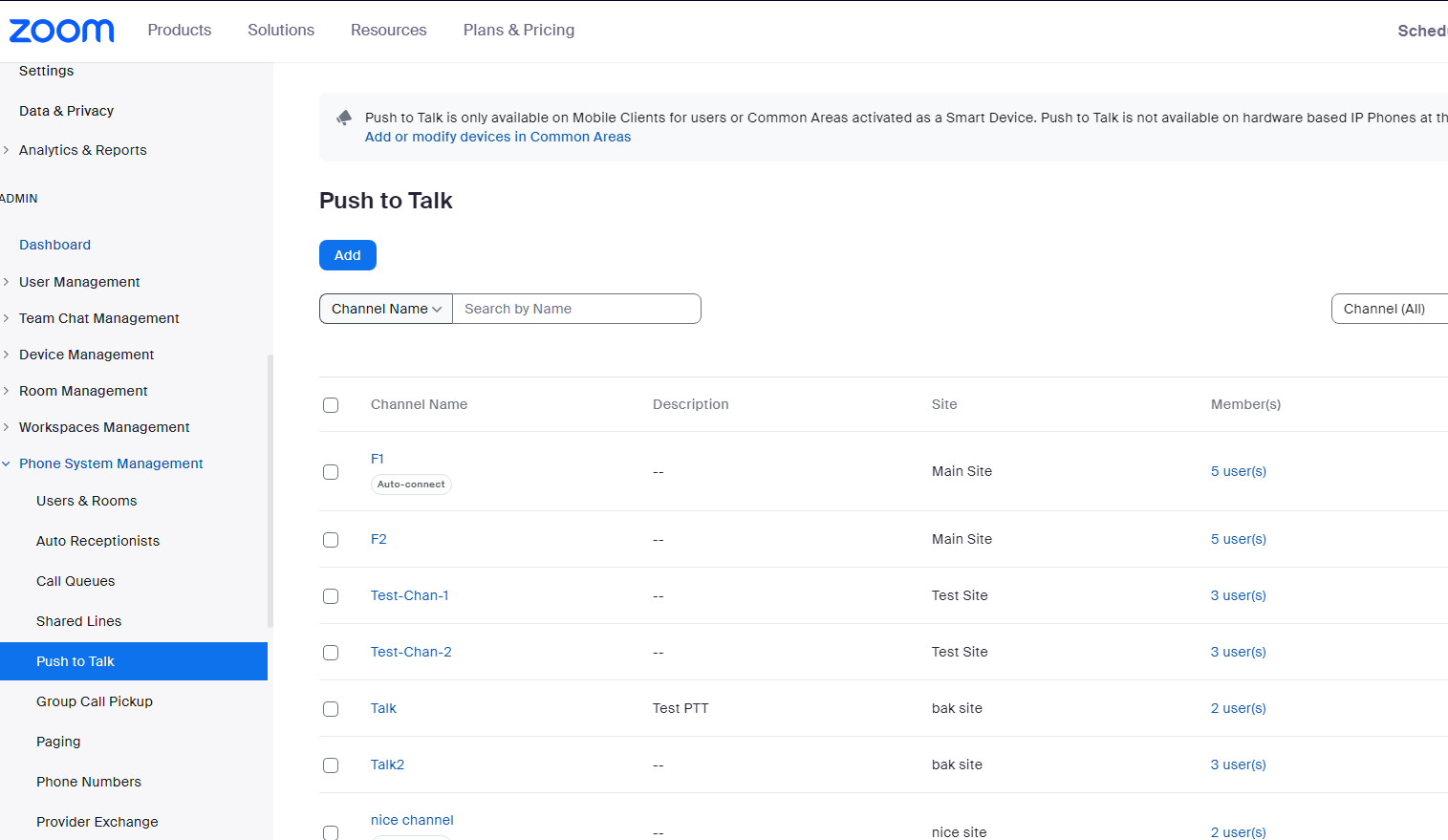
Add a channel
A Channel is a communication group used specifically for Push-to-Talk.
Each PTT channel includes:
- A list of members (users or devices)
- A name and description
- Optional auto-connect behavior (whether devices automatically listen to the channel)
Users added to the same PTT channel can instantly communicate with one another using their WP device’s PTT button, similar to a two-way radio system.
Channels allow organizations to structure communication—for example:
- Security Team Channel
- Warehouse Channel
- Front Desk Channel
- Emergency Response Channel
This makes communication fast, focused, and efficient.
Please refer to the Zoom webpage to add a channel.
User Configuration
Connect a channel
- On WP856, install the Zoom app.
- Sign in the Zoom.
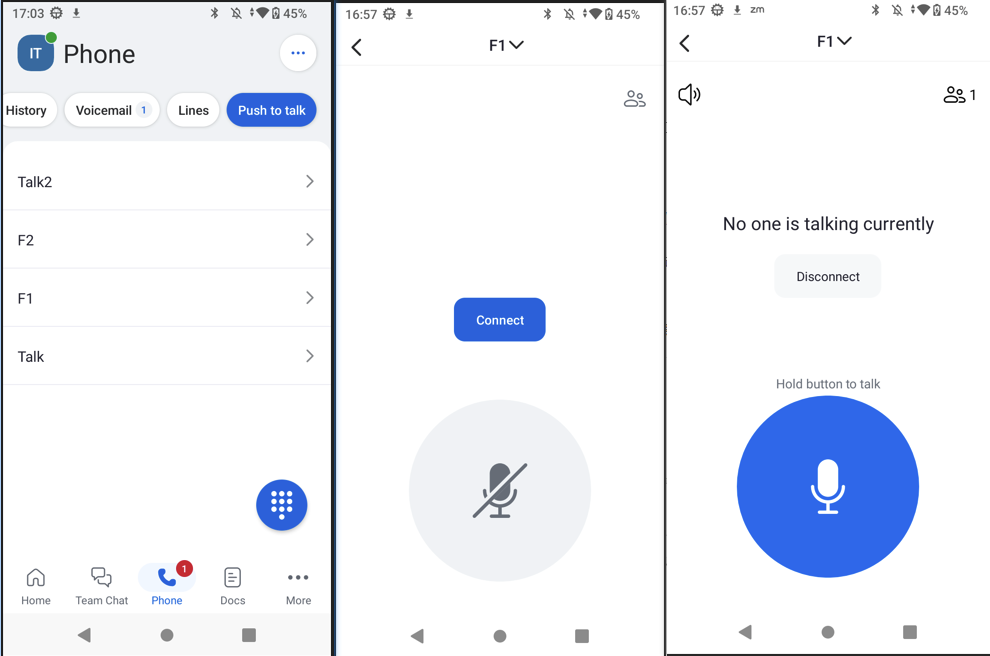
- Tap on “Phone” at the bottom. At the top of the screen, select the “Push to talk” tab to view the channel list.
- Tap the channel you want to participate in.
- (Optional) Tap Connect to connect with the channel.
- At the top of the screen, to the right of the channel name, tap the “down” arrow, then tap the name of the channel you want to switch to.
- Tap Connect to connect with the selected channel.
Use Push-to-talk in the Zoom app
- Sign in to the Zoom mobile app.
- Tap Phone icon.
- At the top of the screen, tap the Push to Talk tab. The list of push-to-talk channels will appear.
- Tap the channel you want to participate in.
- Tap Connect.
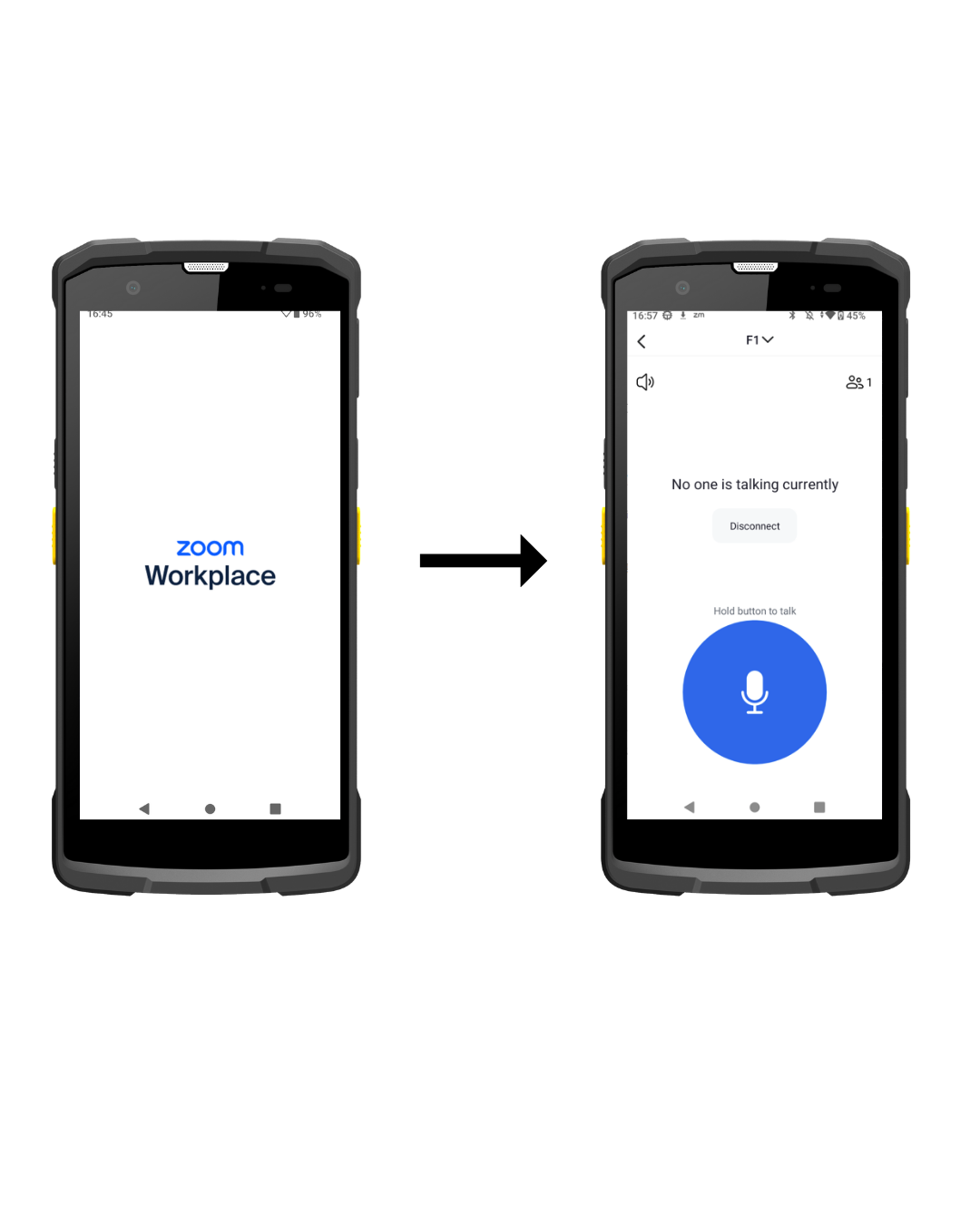
You will be connected to the push-to-talk channel. In the top-right corner, the number of participants will be displayed by the participant icon. - On the screen, hold the speaker button to talk to the channel. The screen will notify you that you are live and talking, and your voice will be broadcasted to all participants of the channel.
- Release the speaker button to stop talking.
- Tap Disconnect to disconnect from the channel, this is optional.
Use Push-to-talk with custom button
- Sign in to the Zoom mobile app and connect to a channel.
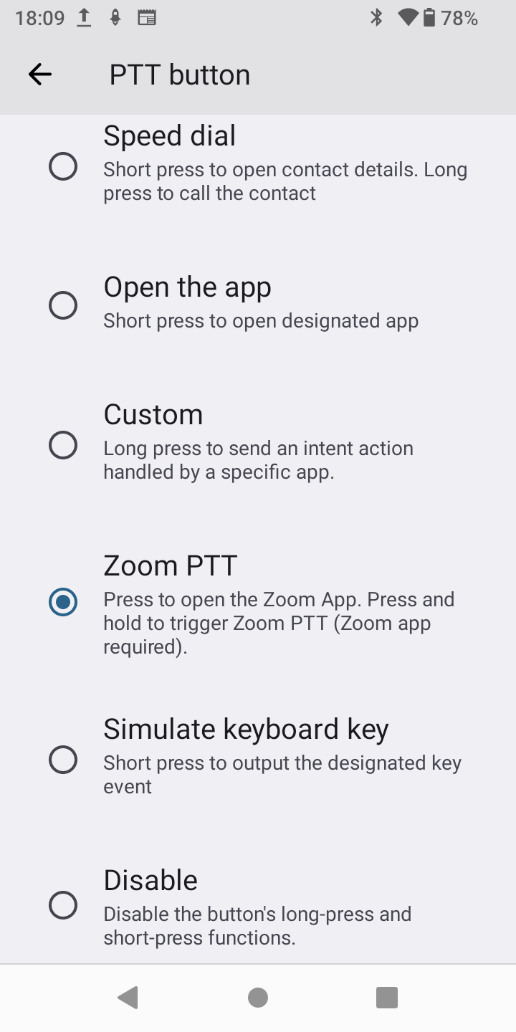
- From WP85 LCD, open GS Settings. Select Intelligent assistance, then Button customization.
- Select PTT button and select Zoom PTT from the list. You can also select other buttons and set as Zoom PTT.
- Press and hold the PTT button on the side of WP856 to talk to the channel.
- Release the PTT button to stop talking.
- Short press the PTT button to open Zoom app.