


INTRODUCTION
Grandstream SIP devices can be provisioned using either the web interface or XML configuration files downloaded via FTP, FTPS, TFTP, or HTTP/HTTPS. Devices such as GXP, GRP, GXV, DP, HT, and WP series support XML-based provisioning, enabling scalable and automated configuration.
For more details on file structure and download behavior, please refer to the Provisioning Flow section below.
PROVISIONING FLOW
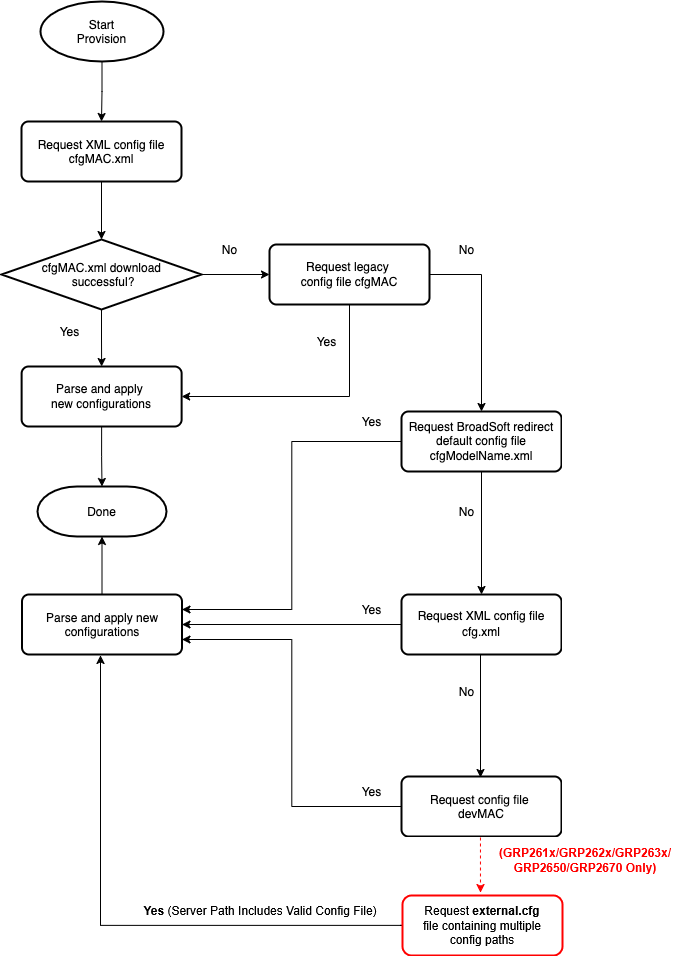
On boot or reboot, Grandstream devices attempt to download a configuration file named cfgMAC.xml (e.g., cfg000b820102ab.xml) via FTP, FTPS, TFTP, or HTTP/HTTPS (some devices do not support FTP/FTPS). If unavailable, the device will try to retrieve a model-specific file (e.g., cfggrp2614.xml) or fall back to a generic cfg.xml.
This fallback allows for two-phase provisioning, starting with a basic config (e.g., to enable a call to a provisioning server) and followed by delivery of a device-specific file after user input (e.g., PIN entry).
Downloaded configuration files are applied immediately without reboot, supporting redirection, updates, and secure provisioning.
CONFIGURATION PARAMETERS
Each web interface field corresponds to a configuration parameter using the formats:
- “P” followed by 2-5 digits (e.g., P2 for Admin Password)
- Intuitive names that match web UI field names for easier management (e.g., users.admin.password = Admin Password
- For complete parameter mapping, refer to the configuration template, which can be downloaded from Grandstream tools.
Example configurations:
The following configurations are examples for enabling SSH access on the phone.
- XML Format (using alias):
<?xml version="1.0" encoding="UTF-8"?>
<gs_provision version="1">
	<config version="2">

		<item name="security.ssh">Yes</item>

	</config>
</gs_provision>- Binary Format (using P-values):
#
P276=1
#
Generate Configuration Files
Grandstream offers a free XML Configuration File Generator software for Windows and Linux/Unix platforms. The XML Configuration File Generators can be downloaded from Grandstream’s official website at https://www.grandstream.com/support/tools.
FTP/FTPS/TFTP/HTTP/HTTPS for Configuration File
Traditionally, TFTP is used for configuration file download.
However, it is more popular today to use HTTP/HTTPS, which is more reliable and does not have NAT issues.
Firmware and Configuration File Prefix and Postfix
Firmware prefix and postfix allow the device to download firmware names with the matching prefix and postfix. Prefix and postfix for both firmware and configuration files are supported.
- Parameters P232 and P233 are for Firmware File Prefix and Postfix, respectively.
- Parameters P234 and P235 are for the Config File Prefix and Postfix, respectively.
In addition, when Parameter P238 (Check New Firmware only when F/W pre/suffix changes) is set to 1, the device will only issue firmware upgrade requests if there are changes to the firmware prefix or postfix.
For example, the firmware basic name for GRP261x is “grp2610fw.bin.” If the service provider uses “gs_” as a prefix and “_1.0.5.44” as a postfix, then the firmware file will be changed to: “gs_grp2610fw.bin_1.0.5.44.”
Firmware prefix and postfix allow firmware with different versions to be stored in one single directory and differentiated by using the prefix or postfix (i.e., all files with a postfix of “_1.0.5.44” belong to the firmware version 1.0.5.44).
The same rule applies to configuration files. For example, for a configuration file named “cfg000b82000001,” there can be three versions:
- “gs_cfg000b82000001_cfg001,”
- “gs_cfg000b82000001_cfg002,”
- “gs_cfg000b82000001_cfg003.”
Firmware Server and Configuration File Server
In addition to the prefix and postfix for the firmware and configuration files, different server paths for firmware upgrade or configuration file server can be specified using different FQDNs.
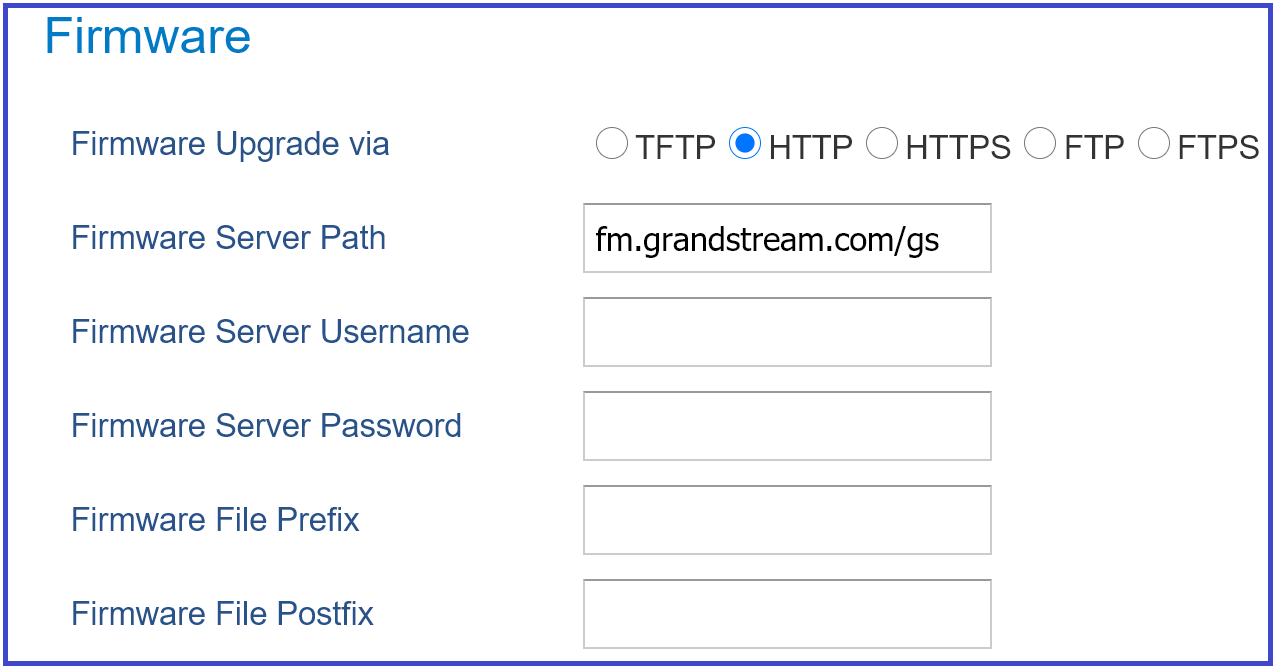
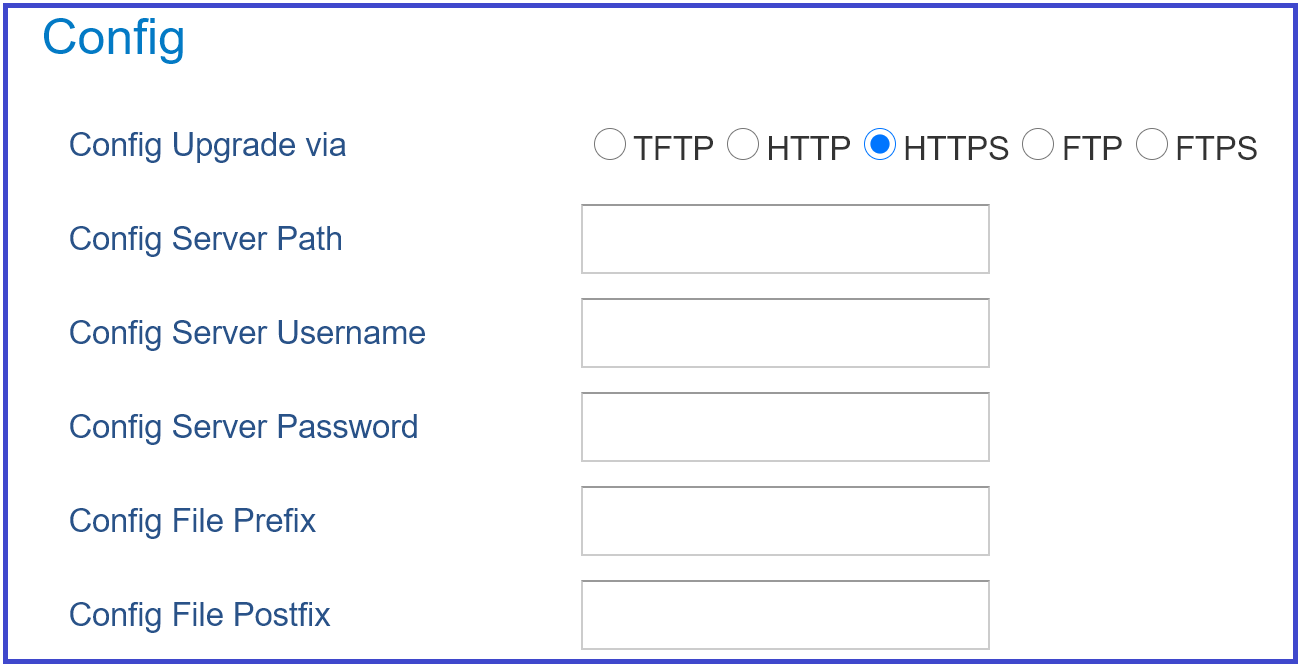
The parameters are P192 and P237 for Firmware Server Path and Config Server Path, respectively.
Managing Firmware and Configuration File Download
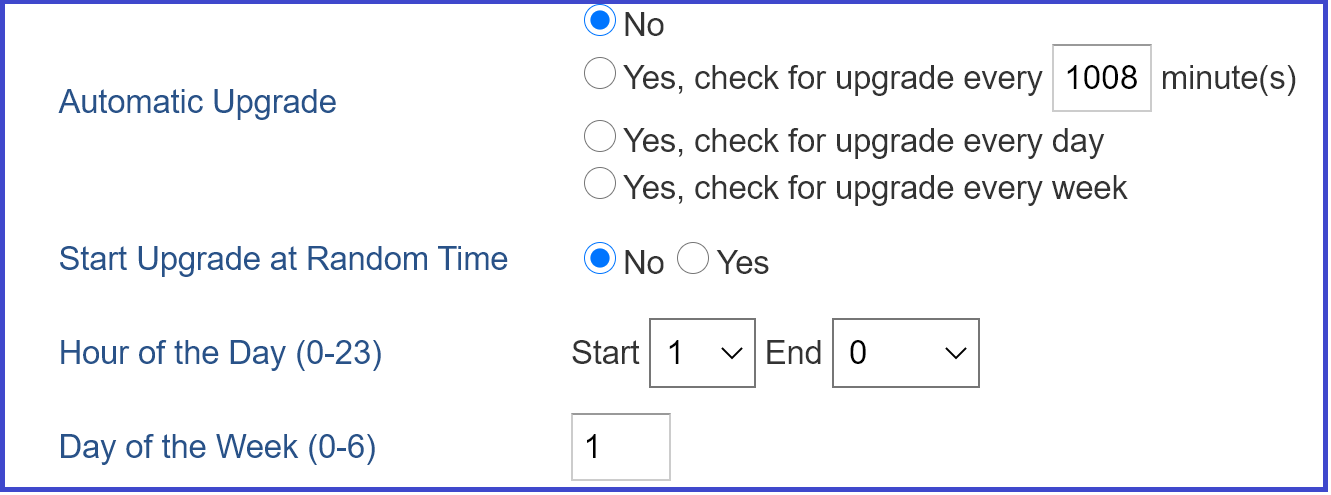
When the parameter P194 (Auto Upgrade) is set to 1, the service provider can use P193 (Auto Check Interval) to periodically check with either the firmware server or the config server whenever they are defined. This allows the device to periodically check if any new changes occur on a scheduled time. By defining different intervals in P193 for different devices, the service provider can distribute the firmware or configuration file download schedule to reduce the firmware or provisioning server load at any given time.
Using Multiple Custom Configuration Files (GRP261x/GRP2624/GRP263x/GRP2650/GRP2670 Series)
The GRP261x/GRP2624/GRP263x/GRP2650/GRP2670 series supports loading multiple custom configuration files during the provisioning process. This feature enhances flexibility and allows configurations to be sourced from different servers or layered in a specific order, ideal for complex or segmented deployment environments.
The configuration steps are described below:
- Ensure the phone’s firmware version is 1.0.13.21 or higher.
- Prepare an external.cfg file with the paths to additional configuration files. For example:
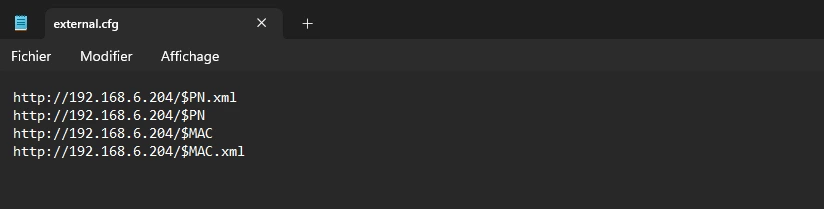
- Place external.cfg on the provisioning server (e.g., TFTP, HTTP) and ensure it is accessible to the phone.
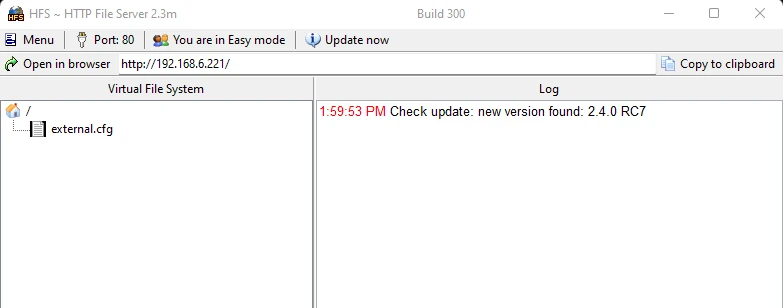
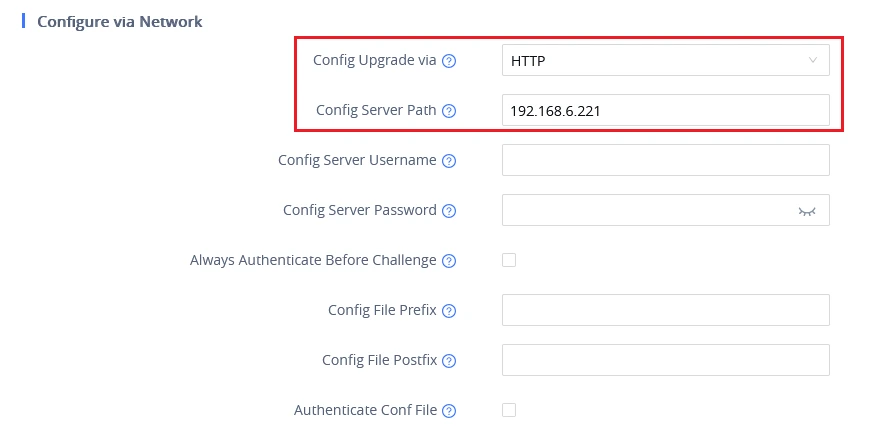
- Set the “Config Server Path” in the phone’s web GUI or provisioning template to point to the external.cfg file.
- Select the appropriate “Config Upgrade Via method” (e.g., TFTP, HTTP) based on where the external file is hosted.
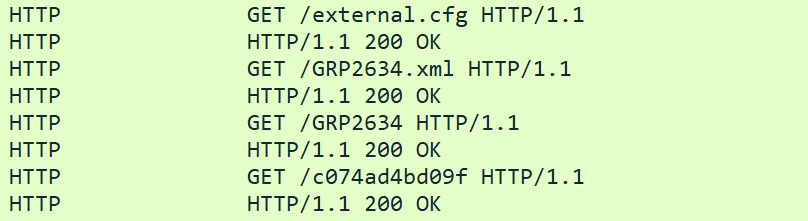
- The phone will download and process the external.cfg file, then sequentially apply the configurations listed in it.
Pre-configuration and configuration redirection
For mass deployment, Grandstream provides FTP/FTPS/TFTP/HTTP/HTTPS redirection service through our certified partners. Here is how redirection works: By default, all Grandstream products are configured with the Grandstream provisioning system. When a Grandstream device is powered up, it will automatically contact our provisioning server. Our provisioning server will then redirect the device to the customer’s FTP/FTPS/TFTP/HTTP/HTTPS server. The device will reboot and send a further provisioning request asking for a configuration file (or firmware file) from the customer’s TFTP/HTTP/HTTPS server.
Below is the information we need from service providers for TFTP/HTTP/HTTPS redirection:
- MAC address range, which is printed on the carton box.
- Your FTP/FTPS/TFTP/HTTP/HTTPS server IP address.
- Your company name and address.
Here is what service providers should do:
- Create configuration files for all the devices and put them on your server.
- Download the latest official firmware release from https://www.grandstream.com/support/firmware and put it on your server (same directory as above).
- After we inform you that the devices have been entered into our central provisioning database, please try a few devices to test. Upon powering up, the devices should contact the provisioning server fm.grandstream.com/gs first, and then get redirected to your FTP/FTPS/TFTP/HTTP/HTTPS server, before requesting the firmware files and the configuration files. The devices will be upgraded to the latest firmware with your configurations.
Grandstream also offers pre-configuration of our devices from the factory, but this will incur an extra cost for the products ordered.
Automatic provisioning within the LAN
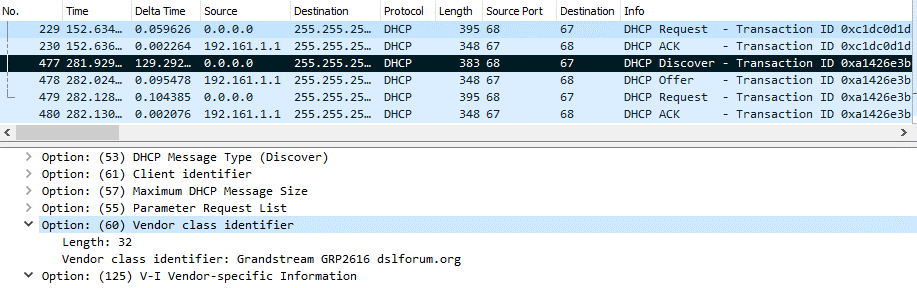
Grandstream products support DHCP Option 66 or 43 for automatic provisioning within a Local Area Network. The provisioning server URL is embedded inside standard option 66 or 43 of DHCP responses. All Grandstream product families support DHCP Option 66, while the new product series GXP21xx/16xx/17xx and GRP26xx support both DHCP Option 66 and 43.
Grandstream SIP devices send out DHCP DISCOVER with the following information:
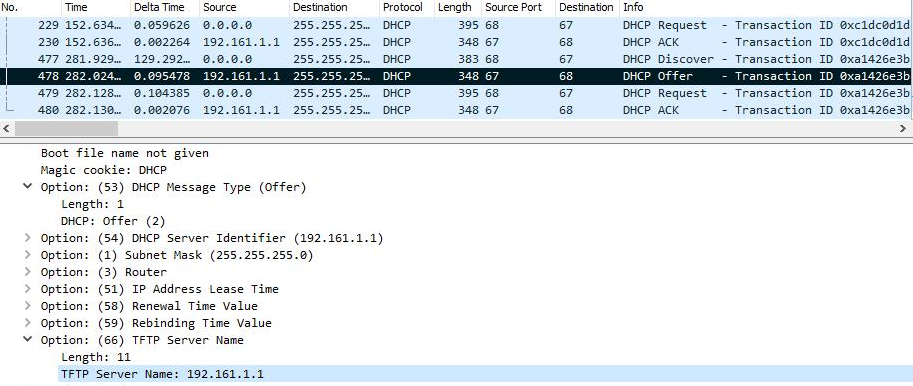
The DHCP Server can be configured to send the following information in its DHCP OFFER. Please notice that in this example, a TFTP server IP address 192.168.1.1 that is provided in the Option 66 “TFTP Server Name” field. The device will then issue HTTP requests instead of the traditional TFTP requests to the server. This design allows more flexibility in device provisioning. While all Grandstream SIP devices support DHCP Option 66, only new product series such as GXP21xx/17xx/16xx and GRP26xx, HT8xx, GXW4xxx, DP7xx, GXV3xxx, and WP8xx support this additional flexibility.
XML PROVISIONING SCHEMA AND EXAMPLE FILE
The general XML syntax consists of a list of name-value pairs. The P-Value is the element, and the value of the element represents the setting for that specific configuration.
Example XML configuration file (cfgxxxxxxxxxxxx.xml):
<?xml version="1.0" encoding="UTF-8" ?>
<gs_provision version="1">
<mac>000b82123456</mac>
<config version="1">
<P271>0</P271>
<P270>Account name</P270>
</config>
</gs_provision>
The <mac> element is not mandatory. It is designed this way because not all provision systems support MAC addresses. If it is present, the provision program will validate the <mac> element with the actual MAC address on the device.
XML Entity Escaping for Dial Plan Patterns
When defining configurations through XML files, certain characters must be escaped using standard XML entities. This is required because characters such as <, >, and & have special meanings in XML syntax and cannot appear directly inside element content without being encoded.
To ensure the configuration file remains well-formed XML, the following substitutions must be used:
<→<>→>&→&
The Web UI automatically performs this escaping when saving the configuration.
However, when provisioning devices manually through XML configuration files, the escaping must be applied explicitly.
Example:
For the dial plan expression { <0=850>T | xxx+ }, the XML configuration must encode the special characters as follows:
<!-- Dial Plan -->
<!-- String Max Length: 2048 -->
<P4200>{ <0=850>T | xxx+ }</P4200>
XML File Encryption
The XML configuration file may be encrypted using AES-256-CBC algorithm. The encryption password is defined in P1359 (XML Config File Password) of the configuration file. The encryption may use salt to enhance security. The algorithm to derive the key and IV from a password is the same as the one used by OpenSSL.
The OpenSSL command-line to encrypt the file is as follows:
Openssl enc –e –aes-256-cbc –k password –in config.xml –out cfgxxxxxxxxxxxx.xml
Alternatively, users can also set the XML Config File Password in the web UI of the phone.

When the XML configuration file is encrypted using this method, the phone would only be able to decrypt and parse the file if the user sets the XML Config File Password in P1359 of the configuration file or in the web UI.
Secure Provisioning
Although the XML configuration file can be encrypted and the encryption algorithm itself is regarded as safe and strong by using AES with 256-bit key length, it remains a question on how to bootstrap and provision the initial XML encryption password. To do this, you can use HTTPS and use client-side authentication. This is the industry standard approach and has the strongest safety.
Supported Devices
Device categroy | Supported Devices |
GRP26xx | GRP2610, GRP2610P, GRP2611G, GRP2612, GRP2612P, GRP2612W, GRP2612G, GRP2613, GRP2613W, GRP2614, GRP2615, GRP2616, GRP2624,GRP2634, GRP2636, GRP2650, GRP2670, GRP2601, GRP2601P, GRP2601W, GRP2602, GRP2602P, GRP2602G, GRP2602W, GRP2603, GRP2603P, GRP2604, GRP2604P |
GXP16xx | GXP1610, GXP1615, GXP1620, GXP1625, GXP1628 and GXP1630 |
GXP21xx | GXP2130, GXP2135, GXP2140, GXP2160 and GXP2170 |
GHP6xx | GHP630, GHP630W, GHP631, GHP631W, GHP610, GHP610W, GHP611, GHP611W, GHP620, GHP620W, GHP621, GHP621W |
WP8xx | WP816, WP826, WP836, WP820, WP822, WP825, WP810 |
DP7xx | DP755, DP752, DP750, DP760 |
GVC32xx | GVC3210, GVC3212, GVC3220 |
GAC25xx | GAC2570, GAC2500 |
GXV3xxx | GXV3380, GXV3350, GXV3370, GXV3480, GXV3450, GXV3470 |
HT8xxx | HT841, HT881, HT813, HT812, HT812 V2, HT814, HT814 V2, HT801, HT801 V2, HT802, HT802 V2, HT818, HT818 V2 |
GXW42xx | GXW4216 V1, GXW4224 V1, GXW4232 V1, GXW4248 V1, GXW4216 V2, GXW4224 V2, GXW4232 V2, GXW4248 V2 |
GSC35xx | GSC3574, GSC3575, GSC3570, GSC3506, GSC3506 V2, GSC3516, GSC3510, GSC3505 |
GDS37xx | GDS3710, GDS3712, GDS3705, GDS3702 |
GSC36xx | GSC3610 |
List of Supported Devices